

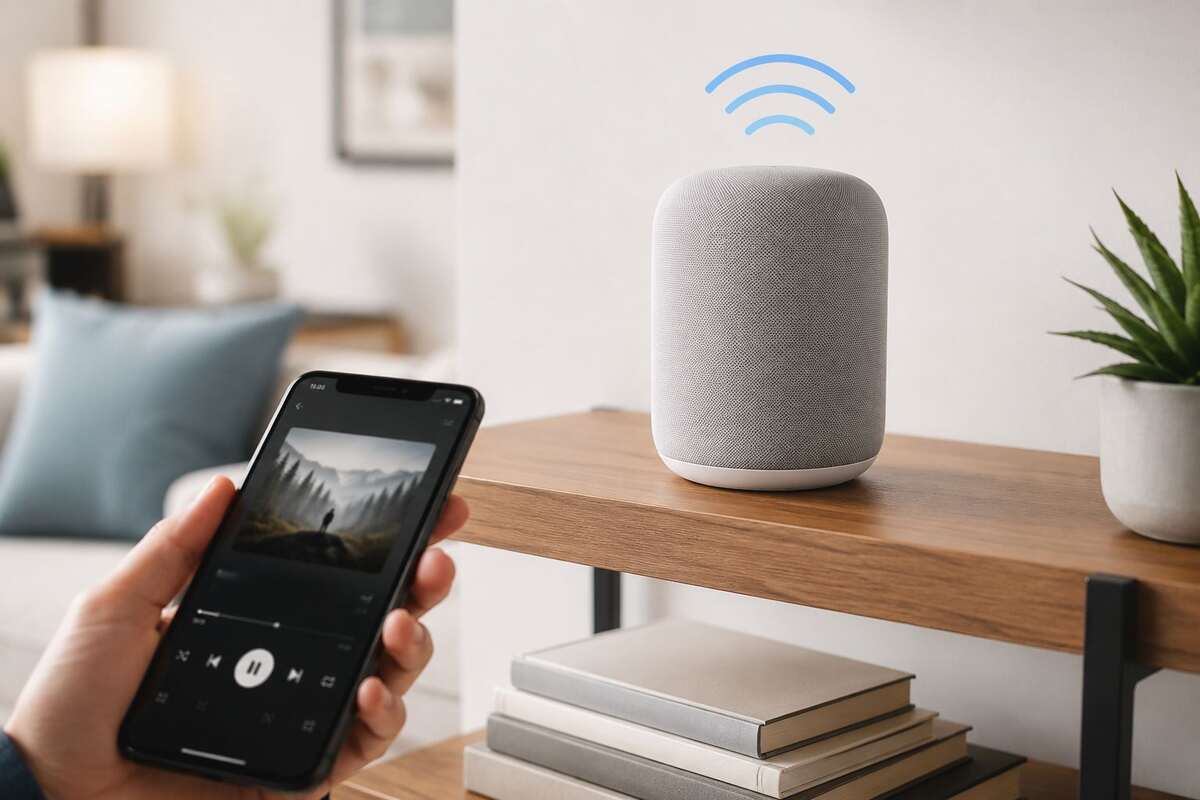
If you’ve just unboxed a smart speaker or you’re upgrading your home audio, you’ve probably run into the term cloud connected audio. It sounds technical, but the idea is simple: your speakers stream music, podcasts, and audiobooks directly from the internet instead of relying on your phone to do all the work.
It’s the technology behind systems like Sonos, WiiM, and Denon HEOS, and it’s quickly becoming the standard for anyone who wants flexible, whole-home sound.
This guide covers what cloud connected audio is, what you need before setup, how to connect everything step by step, and how to fix the most common issues along the way.
What Is Cloud Connected Audio and How Does It Work?
Cloud connected audio streams sound through internet servers rather than relying on a direct connection between two devices.
With a traditional Bluetooth speaker, your phone does all the work. It stores the song, processes it, and sends it to the speaker over a short-range signal. If your phone dies or moves out of range, the music stops.
With cloud connected audio, the speaker itself connects to the internet. It pulls the song directly from a streaming service’s servers, using your home Wi-Fi as the bridge. Your phone becomes more of a remote control, telling the speaker what to play, rather than being the source of the sound.
This setup brings a few real advantages:
- Longer range, since it runs on Wi-Fi instead of Bluetooth’s short radius
- Multi-device control, so anyone on the same network can queue a song from their own phone
- Better reliability, since music keeps playing even if your phone rings or you leave the room
- Higher audio quality, as many cloud-based systems support higher bitrate streaming than Bluetooth allows
Popular platforms include Sonos, Alexa-enabled speakers, Chromecast-built-in devices, and standalone streamers like the WiiM Mini. If you’ve ever asked a smart speaker to play a specific playlist by voice, you’ve already used cloud connected audio.
What You Need Before You Start
A few things ready in advance will save you from restarting halfway through setup.
A stable home Wi-Fi network. This is the backbone of the entire system. A weak or overloaded network is the most common cause of setup failures and dropouts later on.
A compatible speaker or audio system. Check the packaging or product listing for terms like “Wi-Fi speaker,” “works with cloud streaming,” or app names such as Sonos, HEOS, or MusicCast.
A smartphone or tablet with the manufacturer’s app installed. Most cloud audio brands use their own app for initial setup, even if you plan to switch to voice control afterward.
Your Wi-Fi password. It’s the most common thing people forget mid-setup.
A streaming service account (optional but useful). Spotify, Apple Music, and Amazon Music all integrate directly with most cloud audio systems, so having your login ready speeds things up.
Choosing the Right Wi-Fi Speaker or Smart Audio System
Not all smart speakers are built the same, and the right pick depends on what you actually plan to do with it.
For a single speaker in one room, something compact like a Sonos One or Amazon Echo keeps setup simple. For whole-home audio, look for a system built for multi-room expansion, since not every brand supports this equally well.
Before you buy, check:
- App ecosystem, whether it feels intuitive and supports the streaming services you already use
- Voice assistant compatibility, since some systems work with Alexa, others with Google Assistant, and a few support both
- Expandability, so you can add more speakers later without replacing what you own
- Audio quality specs, including support for higher-resolution streaming if that matters to you
Mixing brands can sometimes limit multi-room features, so sticking within one ecosystem for your first setup tends to make life easier.
Step-by-Step Guide to Connecting Your Speaker to the Cloud
Most beginners worry about this part, but it’s a guided process. Here’s what a typical setup looks like:
Step 1: Download the manufacturer’s app. Search your app store for the brand name, such as “Sonos” or “Bose Music,” and install it.
Step 2: Power on your speaker. Plug it in and wait for the light indicator to show it’s ready for setup, usually a blinking or pulsing light.
Step 3: Open the app and select “Add a Device.” Most apps automatically search for nearby speakers ready to pair.
Step 4: Connect the speaker to your Wi-Fi network. Select your home network and enter the password. The speaker uses this to connect to the internet going forward.
Step 5: Sign in or create an app account. This is what lets the system sync your settings across devices.
Step 6: Name your speaker and assign it to a room. This matters more than it seems, especially once you add more speakers later.
Step 7: Wait for the firmware update. Almost every new speaker needs a quick update before first use. This can take a few minutes, so don’t unplug it during this step.
Once the update finishes, your speaker should show as “Connected” or “Online” in the app, and you’re ready to start streaming.
How to Link Your System to a Streaming or Music App
With your speaker connected, the next step is linking it to the music services you actually want to use.
Inside the app, look for a section called “Services” or “Music Sources.” From there:
- Select the streaming service (Spotify, Apple Music, Amazon Music, Tidal, etc.)
- Log in with your existing account
- Grant permission for the app to control playback on your speaker
Once linked, you can start playback through the manufacturer’s app or through the streaming service’s own app if it supports “Connect to Device,” which Spotify handles particularly well.
If you use multiple streaming services, you’re not limited to one. Most cloud connected audio systems let you link several accounts and switch between them as needed.
Setting Up Multi-Room Audio for Whole-Home Sound
One of the biggest advantages of cloud connected audio over older wired systems is how easy it makes multi-room setups.
Adding more speakers follows the same process as the first: power it on, open the app, select “Add Device,” and assign it to a room. The real value shows up in how you group them afterward.
Most apps let you:
- Group multiple rooms to play the same song simultaneously throughout the house
- Play different content in different rooms at once, such as a podcast in the kitchen and music in the living room
- Create custom groups for specific occasions, like a “Party Mode” that links every speaker together
A common example: someone starts a playlist in the bedroom, then adds the kitchen speaker to the group as they move rooms, without interrupting the song. That kind of handoff isn’t possible with Bluetooth.
Common Setup Errors and How to Fix Them
A few issues come up often enough that it’s worth knowing the fixes in advance.
Speaker won’t show up in the app. Confirm it’s in setup mode (usually a specific blinking light) and that your phone is on the same Wi-Fi network, not mobile data.
Wi-Fi password not accepted. Check for typos, and confirm you’re connecting to a 2.4GHz network if your speaker doesn’t support 5GHz, a common limitation on older or budget models.
Setup gets stuck on firmware update. Keep the speaker plugged in and near the router. If it stalls for more than 10 to 15 minutes, restart the speaker and try again.
App shows “Offline” after initial setup. This is usually a router issue. Restarting the router often fixes it, especially after a recent password or settings change.
Multiple speakers won’t group together. Make sure all speakers are on the latest firmware and connected to the same network, since mismatched software versions can block grouping.
Most setup problems trace back to Wi-Fi, so that’s the first place to check.
Tips to Improve Connection Stability and Sound Quality
A few small adjustments can noticeably improve your day-to-day experience once everything is running.
- Place your router centrally, since distance and walls both weaken signal strength
- Keep speakers away from other electronics like microwaves or cordless phones, which can interfere with Wi-Fi
- Use a dedicated 5GHz band if your router supports it, since it’s typically less congested than 2.4GHz
- Keep firmware updated, as manufacturers regularly improve stability and sound performance through updates
- Limit devices on one network if you notice lag, since too many connections can slow things down
In larger homes, a mesh Wi-Fi system can make a real difference compared to a single router trying to cover every room.
Cloud Connected Audio vs Bluetooth: Which Is Easier to Set Up?
It’s a fair question for anyone comparing the two before buying.
Bluetooth is generally faster to set up for a one-time connection. Pair your phone once and you’re playing music within seconds, with no app account, Wi-Fi credentials, or firmware updates involved.
Cloud connected audio takes a few extra minutes upfront because of the Wi-Fi and app setup, but that small investment pays off quickly:
- No need to re-pair every time you switch devices
- Multiple people can control playback without taking over the connection
- It supports whole-home audio, which Bluetooth isn’t built for
- Playback continues even if your phone leaves the room
For a single speaker used occasionally, Bluetooth may feel simpler. For a proper home audio setup, the extra setup time for cloud connected audio is a small trade-off for a far more flexible system.
Keeping Your Smart Audio System Secure and Updated
Because cloud connected audio relies on your home network and an internet connection, some basic upkeep goes a long way.
- Use a strong, unique Wi-Fi password and avoid default router credentials
- Enable automatic firmware updates in the app if available, so your speaker stays patched
- Review connected accounts periodically, especially if you’ve linked several streaming services
- Set up guest network access for visitors instead of sharing your main Wi-Fi password
- Log out of old devices in the app after upgrading phones or retiring a device
These steps take just a few minutes but keep your system running smoothly and your data protected.
Frequently Asked Questions
Do I need Wi-Fi for cloud connected audio to work? Yes. Unlike Bluetooth speakers, cloud connected audio needs an active Wi-Fi connection to stream directly from the internet.
Can I use cloud connected audio without a smartphone? After initial setup, yes. Many systems support voice control through smart assistants, so you can skip the app for everyday use.
Is cloud connected audio more expensive than Bluetooth speakers? Generally yes, since it involves more advanced hardware, though entry-level options have become much more affordable.
Can I mix different speaker brands in one system? It depends on the brand. Some ecosystems, like Sonos, work only with their own devices, while others support broader compatibility through standards like Chromecast built-in.
What happens if my internet goes down? Most systems stop streaming since they rely on a live connection, though some support local playback for downloaded content depending on the app.
How many speakers can I connect to one system? This varies by brand, but most cloud connected audio systems support anywhere from a handful to dozens of speakers across a home.
Conclusion
Setting up cloud connected audio comes down to a few simple steps: connecting to Wi-Fi, linking your streaming accounts, and letting the app guide you through the rest. Once it’s running, you get reliable, flexible, whole-home sound that Bluetooth simply can’t match. Take it one step at a time, and your system will be up and running faster than you expect.